Instagram की Deleted Post कैसे Recover करें? | How to Recover Deleted Instagram Post
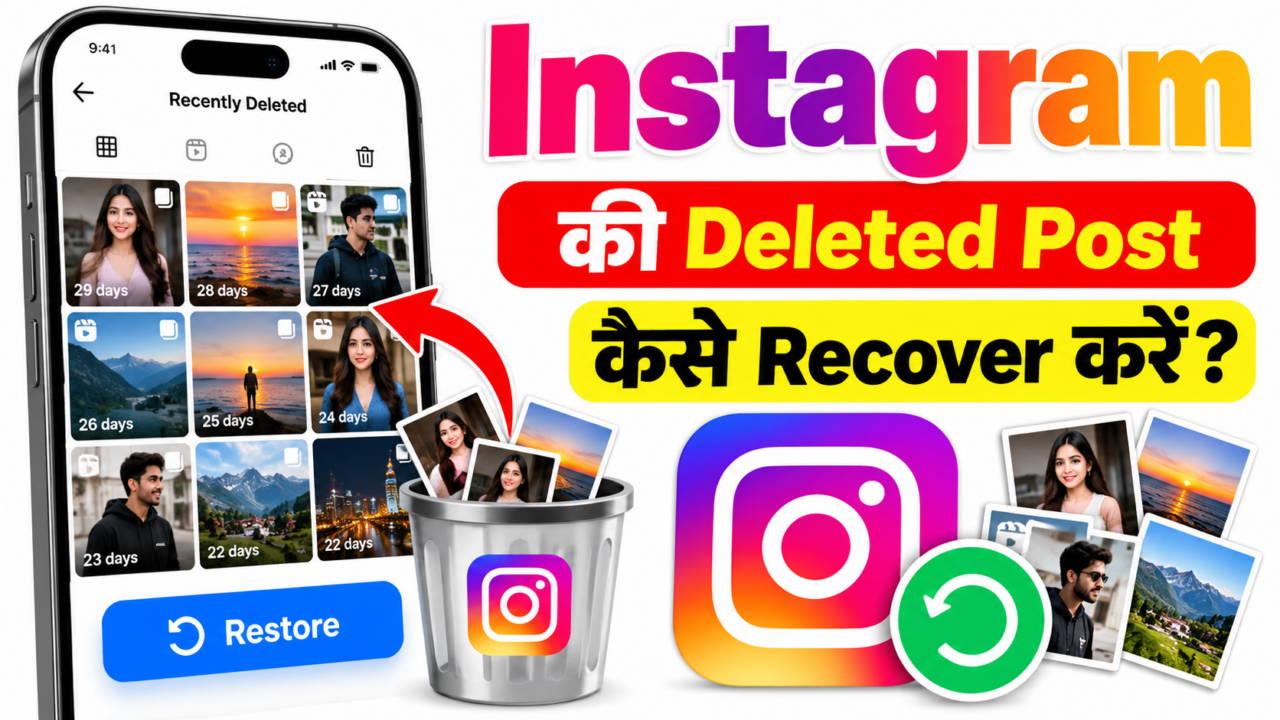
How to Recover Deleted Instagram Posts, Reels, Photos, Videos and Stories
If you accidentally deleted an Instagram post, photo, video, Reel, Story, or other eligible Instagram content, do not immediately assume that the content is gone forever. Instagram provides built-in options that can help you find recently deleted content and, when it is still eligible for restoration, move it back to the place where it originally appeared. Instagram also has an Archive feature, which is different from deletion and can be useful when content was hidden from your profile rather than permanently removed.
The first thing to understand is that there is no single recovery method for every type of Instagram content. A post that was deleted may be handled through Recently Deleted, while a post that was archived should be handled through Archive. Stories can have different retention behavior depending on whether they were archived, and deleted direct messages are not the same as deleted feed posts. Because of these differences, checking the correct section is important.
What Happens When You Delete Something on Instagram?
When you delete content from Instagram, it may first be moved into Instagram’s Recently Deleted area instead of immediately disappearing permanently. This gives the account owner an opportunity to review the deleted item and restore it when the item is still within the applicable recovery period.
Recently Deleted is therefore one of the first places you should check after accidentally deleting a post. It is especially useful when the deletion happened recently and you have not intentionally removed the item from the recovery area.
However, Recently Deleted should not be treated as a permanent backup. For eligible content, Instagram’s current guidance says items in Recently Deleted are automatically deleted after 30 days; Stories that are not in Stories Archive can have a shorter window of up to 24 hours. After the applicable window ends, the content may no longer be restorable through Instagram’s normal recovery controls.
How to Recover a Deleted Instagram Post
If you deleted a normal Instagram feed post, start by checking Recently Deleted. The exact wording of the menu can vary, but the recovery flow generally begins from your Instagram profile and account-management options.
- Open the Instagram app and sign in to the account that contained the deleted post.
- Open your profile and tap the menu button in the upper-right area.
- Open Your Activity or the account-management section where Instagram lists activity and deleted content.
- Look for Recently Deleted.
- Review the deleted photos, videos, Reels, Stories or other eligible content shown there.
- Open the item you want to recover.
- Use the available Restore option and complete any security verification Instagram requests.
After restoration, the content should return according to Instagram’s restoration behavior for that type of content. A restored post is not necessarily treated like a newly uploaded post; the important point is that you are using Instagram’s built-in recovery system rather than uploading a separate replacement.
How to Recover a Deleted Instagram Photo
If the deleted item was a photo post, the same Recently Deleted process is generally the first method to check. Instagram’s deleted-content recovery guidance covers photos and videos as well as other eligible content types. Open your profile menu, find Your Activity or the relevant account activity section, and then open Recently Deleted.
Once you locate the photo, select it and look for the restoration option. If Instagram requires identity or security confirmation, complete that step from inside the official Instagram application.
If the photo is not visible in Recently Deleted, check whether you actually archived it instead of deleting it. An archived photo is not the same as a deleted photo, and it should be handled from Instagram’s Archive section.
How to Recover a Deleted Instagram Video
Videos posted to Instagram can also be affected by the same deletion and recovery workflow. A deleted video is one of the content types you should check in Recently Deleted. If a video was deleted recently, check Recently Deleted before trying to recreate the post.
If you find the video there, open it and use the available restore control. If it is not there, check Archive if you previously chose to hide the post rather than delete it. Also check the original video file on your phone or cloud backup if you need a separate copy for reference or re-uploading.
How to Recover a Deleted Instagram Reel
Reels should also be checked in Recently Deleted when they were actually deleted. A deleted Reel is handled separately from an archived Reel, so checking both locations is useful. Open Instagram, go to your profile menu, find Your Activity or the relevant deleted-content section, and open Recently Deleted.
Find the Reel you want to restore and select the available restore option. If Instagram asks you to confirm your identity, follow the on-screen instructions.
If the Reel was not deleted but was archived or otherwise hidden, check your Archive instead. It is important not to confuse an archived Reel with a deleted Reel because the two situations use different account controls.
How to Recover a Deleted Instagram Story
Stories require extra attention because Stories normally have a short public display period, and Instagram also provides an Archive feature for eligible Stories. If you delete a Story, check Recently Deleted as soon as possible.
If the Story was saved to your Story Archive instead of deleted, you may be able to find it under Archive. Open your profile, open the menu, select Archive, and switch to the Story Archive view if necessary.
If the Story is in Archive, you are not recovering a permanently deleted file. Instead, you are accessing a Story that Instagram has retained in your archive. From there, Instagram may provide options related to sharing, highlighting or other Story actions depending on the current feature set.
If a deleted Story is not available in Recently Deleted and was not preserved in Archive, Instagram may not provide a normal in-app restoration path. This is why checking the correct section quickly is important.
For the current recovery rules, Instagram’s deleted-content guidance states that content in Recently Deleted is automatically deleted after 30 days. A Story that is not in Stories Archive can have a much shorter Recently Deleted window of up to 24 hours. This is why a Story should be checked as soon as possible rather than waiting.
Recently Deleted vs Archive: What Is the Difference?
| Feature | Recently Deleted | Archive |
|---|---|---|
| Purpose | Temporary recovery area for eligible deleted content | Stores content you choose to hide from the normal profile view |
| Content status | Deleted from its normal location | Archived rather than deleted |
| Restore option | May provide a Restore option while eligible | Can return archived content to its normal place using the available archive controls |
| Best time to check | Immediately after accidental deletion | Whenever you remember that a post was archived |
How to Restore an Archived Instagram Post
If you cannot find a post in Recently Deleted, do not stop there. You may have archived it. Archive is designed to let you hide content from your profile without deleting the content in the same way as a normal deletion.
- Open Instagram and go to your profile.
- Open the profile menu.
- Select Archive, or open the Archive option through the account activity controls available on your version of Instagram.
- Choose the appropriate archive category, such as Posts Archive.
- Find the photo, video or Reel you previously archived.
- Open the item and select the available option to show it on your profile again.
Because Archive and Recently Deleted serve different purposes, it is worth checking both before concluding that an old post has disappeared permanently.
Can Deleted Instagram Direct Messages Be Recovered?
Deleted direct messages are different from deleted posts, Reels, photos and Stories. You should not assume that a deleted conversation can be restored simply because Instagram has a Recently Deleted area for certain types of content. Instagram’s help guidance states that deleted messages cannot be restored.
If an important message is missing, first determine whether the conversation was actually deleted, moved, filtered, or simply not visible in the normal inbox. Search your messages, check message requests where relevant, and verify that you are using the correct Instagram account.
Instagram’s account-data tools can also be useful when you need to review information associated with your account, but downloading account information should not be presented as a guaranteed method for restoring a deleted chat directly back into your inbox.
What Is the Instagram Accounts Center?
Meta’s Accounts Center is a central place for managing certain connected account settings across Meta products. Depending on your account configuration, it can contain options related to account information, password and security, connected experiences, permissions and your information.
Accounts Center is useful when you want to manage account-level information or access Meta’s information-management controls, but it is important to distinguish those controls from Instagram’s specific Recently Deleted and Archive features.
If you are trying to recover a deleted Instagram post, do not assume that simply opening Accounts Center will restore it. For a deleted post, Recently Deleted is the relevant place to check first. For an archived post, use Archive. For account information, use the appropriate information-management controls inside Accounts Center.
How to Check Your Instagram Information and Download a Copy
Instagram and Meta provide account-information tools that can allow users to access or download information associated with their accounts. The exact screens can change, but you can generally reach these controls through Instagram’s settings and Accounts Center.
- Open Instagram and go to your profile.
- Open the menu and enter Settings and activity or the current settings area shown by your app.
- Open Accounts Center when available.
- Look for Your information and permissions.
- Choose the available option for accessing or downloading your information.
- Select the Instagram account and the information categories you need.
- Follow Instagram’s instructions to create or access the available information file.
This feature is primarily an information-access tool. It should not be described as a universal deleted-content restoration system. If a photo, Reel or post has already been permanently removed from Instagram’s recovery systems, an account-data download does not necessarily recreate that content on your profile.
What If Recently Deleted Is Empty?
If Recently Deleted does not contain the item, work through a short checklist before giving up.
- Confirm that you are signed into the correct Instagram account.
- Check Recently Deleted again and review the available content categories.
- Check Archive, especially if you often use the Archive feature.
- Check your phone’s Photos or Gallery app for the original media.
- Check any trusted cloud backup where you normally save photos and videos.
- Check whether the content was removed by Instagram rather than manually deleted by you.
- Look for any account notifications or policy messages related to the content.
- Update the Instagram app if the menu is behaving unexpectedly.
- Try the same account from another supported device if you suspect a local app problem.
If the content was removed by Instagram for a policy or copyright-related reason, the recovery path can be different from normal accidental deletion. In that situation, review the notice shown by Instagram and use any appeal or review option that Instagram itself provides.
Can You Recover a Permanently Deleted Instagram Post?
There is an important difference between recently deleted content and content that has already been permanently removed from Instagram’s recovery system. The normal Restore option is intended for content that is still eligible for restoration.
If an item is no longer available in Recently Deleted and is not present in Archive, Instagram may not provide an ordinary in-app method to restore the original post. Third-party “Instagram recovery” websites cannot give themselves official access to Instagram’s internal deletion system simply by asking for your username.
If you still have the original photo or video, you may be able to create a new post, but that is different from restoring the original post. A new upload can have different comments, likes, shares, URL, publication date and other engagement information.
Why Your Deleted Instagram Post May Not Appear
There are several possible reasons a deleted item may not be visible. The most common explanation is that the item is outside the applicable recovery window or was permanently removed. Another possibility is that the content was archived rather than deleted, meaning it is stored in Archive instead of Recently Deleted.
It is also possible that Instagram changed the location or wording of a menu in a newer app version. If the instructions on your screen look different, search the current Instagram settings for terms such as Recently Deleted, Archive, Your Activity, and Accounts Center.
What You Should Not Do While Trying to Recover Instagram Content
- Do not give your Instagram password to a random recovery website.
- Do not share login verification codes with another person.
- Do not share two-factor authentication codes.
- Do not scan an unknown QR code for someone claiming to recover your post.
- Do not install an APK or browser extension that claims to unlock deleted Instagram content.
- Do not pay a service simply because it promises a guaranteed recovery result.
- Do not assume that a third-party “recovery panel” has access to Instagram’s private systems.
The safest approach is to use Instagram’s own Recently Deleted, Archive, Your Activity, account-security and information-management features. If Instagram provides an official review or appeal option for a content-removal decision, use that official process instead of relying on an unknown service.
Quick Recovery Checklist
- Open the correct Instagram account.
- Check Recently Deleted for deleted posts, photos, videos, Reels and eligible Stories.
- Select the deleted content you want to recover.
- Use Restore if Instagram still provides that option.
- If the item is not there, check Archive.
- For Stories, check both Recently Deleted and Story Archive where applicable.
- If you need account information, check Accounts Center → Your information and permissions.
- If Instagram removed the content for a policy reason, check for an official review or appeal option.
- If the original media is permanently unavailable on Instagram, check your phone and trusted backups.
- Never give your Instagram password or security codes to an unofficial recovery service.
How Instagram Deleted Content Recovery Actually Works
Instagram recovery becomes much easier to understand when you separate three different situations: content that has been deleted recently, content that has been archived, and content that has already passed the available recovery period. These situations may look similar because the content is no longer visible on your profile, but they are handled through different parts of Instagram.
When you delete an eligible item, Instagram can place it in Recently Deleted for a limited period. During that period, the item can remain available for restoration. This is why opening Recently Deleted immediately after an accidental deletion is important. Waiting does not make the recovery process easier, because content can eventually leave the recovery area automatically.
Archive works differently. When you archive a post, you are intentionally hiding it from your normal profile view rather than treating it as deleted content. An archived item can therefore be found through Archive even though someone visiting your profile may no longer see it in the normal grid.
The third situation is content that is no longer available through either location. If an item has been permanently removed from Instagram’s recovery system, the normal Restore control may no longer be available. At that point, the practical options can include checking your own device backups, cloud photo storage, or any original media you saved before uploading it.
What Types of Instagram Content Should You Check?
People often search for a single “deleted post recovery” option even when the missing item is actually a Reel, Story, video, or another type of content. A better approach is to identify exactly what disappeared and then check the relevant Instagram section.
- Photo posts: Check Recently Deleted first if the photo was deleted.
- Video posts: Check Recently Deleted and then check your original device copy.
- Reels: Check Recently Deleted when a Reel was deleted, and check Archive if it was previously archived.
- Stories: Check Recently Deleted quickly and also check Story Archive if the Story was retained there.
- Archived posts: Use Archive instead of Recently Deleted.
- Deleted conversations: Treat these separately from deleted media because post recovery controls do not automatically restore deleted chats.
- Content removed by Instagram: Look for any notice, review, or appeal option shown by Instagram rather than treating it as an ordinary manual deletion.
This distinction also helps prevent a common mistake: repeatedly searching the wrong section. If you know that you archived a post, there is little benefit in repeatedly checking Recently Deleted. If you definitely deleted a Reel, Recently Deleted is the more logical first check.
Step-by-Step: What to Do Immediately After Accidental Deletion
If you have just deleted an important Instagram item, avoid making unnecessary changes to your account while you investigate. Start with the simplest official recovery route and work outward from there.
- Stay signed in to the Instagram account that originally contained the content.
- Confirm that you are looking at the correct profile if you manage multiple Instagram accounts.
- Open Instagram’s profile menu and locate Your Activity or the current activity-management area.
- Open Recently Deleted and review all available categories.
- Check whether the missing item is a photo, video, Reel, Story or another eligible item.
- Open the correct item rather than selecting unrelated content.
- Use Restore if Instagram displays that option.
- Complete any identity or security confirmation requested by Instagram.
- If the item is not in Recently Deleted, check Archive.
- If the item is still missing, check your phone gallery and trusted backups for the original media.
This process is preferable to immediately installing a third-party “recovery” application. Instagram’s own controls are the first place to look because they operate within the account where the content was originally created.
How to Find Recently Deleted on Different Instagram App Layouts
Instagram periodically changes the appearance and organization of its settings. As a result, two users can sometimes see slightly different menu names or positions even when they are using the same general recovery feature.
On many versions of the app, you can start from your profile, open the menu, and look for Your Activity. From there, Instagram may provide controls related to recently deleted content. On other versions, account-management options may be grouped differently, so searching the settings for “Recently Deleted” can be more practical than following an old screenshot.
If you cannot see the option immediately, do not assume that the feature has been removed. First update Instagram through the official app store, reopen the application, and check the current profile and activity menus again. The exact navigation can also depend on the type of account and the version of Instagram installed on your device.
How to Check Whether You Archived the Post by Mistake
Sometimes a user believes a post was deleted because it disappeared from the profile grid, but the post was actually archived. This can happen when the Archive option was selected accidentally or when someone was cleaning up their profile and forgot which action they used.
An archived post can remain associated with the account while being hidden from the normal profile. Therefore, if the post is not in Recently Deleted, Archive should be one of the next places you check.
Open your profile, enter the relevant menu, and open Archive. Instagram can provide different archive categories depending on the content and current features available to your account. Look through the Posts Archive and Story Archive where applicable.
If you find the missing post in Archive, use the available option to show it on your profile again. This is an archive-management action, not a deleted-content restoration action, so the process is different from pressing Restore inside Recently Deleted.
What If the Instagram Post Was Deleted a Long Time Ago?
The age of the deletion matters. Recently Deleted is designed as a temporary recovery area rather than a permanent storage folder. Instagram’s current guidance describes a limited retention period for deleted content, after which the item is automatically deleted from that recovery area.
For many eligible items, Instagram’s current guidance describes a 30-day period in Recently Deleted. Stories that are not in Stories Archive can have a shorter period of up to 24 hours. This difference is especially important for users trying to recover a Story.
If a post was deleted many weeks ago and is no longer shown in Recently Deleted, the normal Instagram Restore control may no longer be available. At that stage, your own backups become much more important.
Where to Look for an Older Copy
- Check the phone’s Photos or Gallery application.
- Check the device’s recently deleted photo folder if the original media was also removed locally.
- Check the cloud photo service you normally use.
- Check a computer or external drive where you may have copied the media.
- Check folders used by your camera or editing applications.
- Check whether the original video or photo was saved before uploading it to Instagram.
Finding an original file does not restore the original Instagram post itself. It simply gives you the media that can potentially be uploaded again as a new post.
Restoring eligible content through Instagram’s own Restore control is different from uploading the same photo or video again. A new upload is a new Instagram publication and should not be expected to reproduce the complete engagement history of the old item.
If an item is successfully restored through Instagram’s own recovery feature, the restoration is tied to the original account content rather than being a brand-new upload created from a copy on your phone. However, the exact result can depend on the content type and Instagram’s current restoration behavior.
If you instead create a new post from an old photo or video file, the new post can have a different URL, publication date, likes, comments, shares and other engagement information. That is why finding the original media is not the same thing as recovering the original Instagram post.
What If Instagram Removed the Content Instead of You?
Manual deletion and platform removal are different situations. If Instagram removed content because it detected a potential violation of its rules, the item may not behave like content that you personally deleted.
In that situation, read the notification shown by Instagram. Depending on the reason and the current account tools, Instagram may provide a review or appeal option. If such an option is available, use the official process shown in the app.
Do not assume that a third-party recovery website can reverse a platform decision. A normal recovery website does not gain official control over Instagram’s internal moderation or account systems simply because it has an online form.
What If You Cannot Find the Restore Button?
If you can see the deleted item but cannot find Restore, first check whether the item is actually inside the correct recovery section. Instagram’s available actions can vary by content type, account state and current app version.
Make sure the application is updated, reopen Instagram, and check the item again. If Instagram asks for security confirmation, complete the requested verification. If the content has reached the end of its applicable recovery period, the Restore control may no longer be available.
It is also useful to distinguish a missing Restore button from an application error. If multiple menus are failing to load, try restarting the application and checking your connection. If only one old item has no recovery option, the item’s status or eligibility may be the more relevant explanation.
Instagram Recovery on Android vs iPhone
The general recovery concept is similar on Android and iPhone because the account-level content is managed by Instagram. However, the visual appearance of menus, navigation controls, system dialogs and permission screens can differ between devices.
On Android, update Instagram through the supported app store and avoid installing modified versions of Instagram that claim to expose hidden recovery features. On iPhone, use the official App Store version and avoid third-party profiles, configuration files or apps that claim to unlock deleted Instagram content.
If the same account shows the same missing content on multiple supported devices, the issue is more likely to be related to the account or content status than to a single device’s local application cache.
Can Clearing Instagram Cache Help?
Clearing an application’s cache can sometimes help with ordinary display or loading problems, but it should not be presented as a method for reversing an account-level deletion. If Recently Deleted is empty because content is outside its recovery period, clearing the cache does not recreate the deleted content.
Cache troubleshooting is more relevant when menus fail to load, images do not display correctly, or the application behaves unexpectedly. For actual account recovery, use the account’s official content-management options first.
Can Reinstalling Instagram Recover Deleted Content?
Reinstalling Instagram can resolve some application problems, but it does not guarantee that deleted Instagram content will return. Your account’s content is not simply stored inside the application installation folder.
If a post is eligible for restoration, you should be able to use Instagram’s account-level recovery controls after signing back into the correct account. If the content is already permanently removed from Instagram’s recovery system, reinstalling the app does not change that account status.
Why Third-Party Instagram Recovery Apps Are Risky
Search results and social media posts can contain applications or websites that promise to recover every deleted Instagram post, message, Reel or Story. These claims should be treated carefully.
A service that asks for your Instagram username may only be collecting information, while a service that asks for your password, verification code, two-factor authentication code or QR login information creates a much more serious security concern.
Even if a website displays Instagram branding, a logo or a professional-looking dashboard, that does not prove that it is an official Meta or Instagram recovery service.
- Never give your password to an unknown recovery service.
- Never share a six-digit login or verification code.
- Never share your two-factor authentication code.
- Never scan an unknown QR code because someone claims it will recover a deleted post.
- Do not install modified Instagram APK files to unlock “hidden recovery.”
- Do not give an unknown service remote access to your device.
How Accounts Center Fits Into Instagram Recovery
Accounts Center can be confusing because it contains many account-level controls and may be the place where you manage information connected to your Meta accounts. However, Accounts Center is not simply another name for Recently Deleted.
When your goal is deleted-content recovery, use the content-specific controls first. Recently Deleted is for eligible deleted content, while Archive is for content you intentionally or accidentally moved out of the normal profile view.
When your goal is reviewing or downloading account information, Accounts Center can be relevant. Under information and permissions, Instagram and Meta can provide controls for accessing or downloading information associated with your account.
How to Tell Whether a Missing Post Is Deleted, Archived or Removed
| What You See | Where to Check | What It Usually Means |
|---|---|---|
| The post disappeared after you tapped Delete | Recently Deleted | It may still be eligible for restoration |
| The post disappeared from your profile but you remember hiding it | Archive | It may have been archived rather than deleted |
| A Story disappeared after a short period | Story Archive / Recently Deleted | Check both locations where applicable |
| Instagram displayed a policy notification | Notification / review controls | The content may have been removed by Instagram |
| Nothing appears in recovery sections | Device and cloud backups | The Instagram recovery window may have ended or the item may not be eligible |
What to Do If You Accidentally Delete Multiple Posts
If several photos, videos or Reels were deleted together, do not assume that you need a separate third-party recovery service. Start by opening Recently Deleted and reviewing the available items. Instagram may show multiple deleted items there, depending on what is currently eligible for recovery.
Before restoring anything, verify that you are using the correct account and that you recognize the content. If you are recovering many items, work systematically so that you do not accidentally overlook an important photo or restore the wrong item.
If some items are visible and others are missing, their deletion dates, content types or eligibility may be different. One item being available does not guarantee that every older item will remain available at the same time.
What to Do After Successfully Restoring a Post
After a successful restoration, open your profile and confirm that the content appears as expected. Check the relevant post, Reel or Story-related destination according to the content type.
If the media is important, keep an original copy outside Instagram. This can be especially useful for videos and edited photos that would be difficult to recreate.
You can also review your account security after a recovery incident. If the deletion was unexpected or you suspect another person accessed the account, review your password, two-factor authentication and logged-in devices using Instagram’s official security controls.
How to Protect Important Instagram Content in the Future
The easiest recovery problem to solve is the one you never have to face. If you publish important photos, videos or Reels, keep an original copy before uploading them to Instagram.
- Keep original photos in your phone or a trusted cloud photo service.
- Keep a separate copy of important edited videos.
- Use Archive when you only want to hide a post rather than delete it.
- Review your account’s security settings regularly.
- Enable available two-factor authentication features.
- Do not share login codes with anyone claiming to be support.
- Keep Instagram updated from an official app store.
- Do not depend on Instagram as your only storage location for important media.
These steps do not guarantee that every Instagram post can always be recovered, but they reduce the impact of accidental deletion and make it easier to recreate content if the official recovery period has ended.
Frequently Asked Questions About Instagram Deleted Post Recovery
Can I recover a deleted Instagram post?
If the post is still eligible and appears in Recently Deleted, Instagram may provide a Restore option. If it has already been permanently removed from the recovery system, the normal Restore option may no longer be available.
Can I recover a deleted Reel?
Check Recently Deleted first. If the Reel was archived rather than deleted, check Archive. If neither location contains it, look for the original video in your device or trusted backups.
Can I recover a deleted Instagram Story?
Check Recently Deleted quickly and also check Story Archive. Deleted Stories that are not in Stories Archive can have a shorter recovery period than other eligible content.
Can I recover an archived Instagram post?
Yes, an archived post can generally be managed from Archive. It is not necessary to treat an archived post as permanently deleted.
Can Instagram recover permanently deleted posts?
Once content has passed the applicable recovery period or has been permanently removed from Instagram’s recovery system, the normal in-app Restore option may no longer be available.
Can I recover deleted Instagram messages?
Deleted messages are different from deleted media posts. Do not assume that Recently Deleted for posts and other content will restore a deleted conversation. Instagram’s own guidance states that deleted messages cannot be restored.
Can Accounts Center recover a deleted post?
Accounts Center provides broader account information and permission controls. It should not be treated as a replacement for Recently Deleted or Archive when recovering Instagram content.
Can I recover a deleted post without the original photo?
If Instagram still has the eligible post in Recently Deleted, the original file on your phone may not be necessary for the in-app Restore process. If Instagram no longer has the item available for restoration, having your own original copy becomes useful for creating a new post.
Does reinstalling Instagram restore deleted posts?
No. Reinstalling the app can help with some technical problems but is not a guaranteed deleted-content recovery method.
Does clearing Instagram cache recover deleted posts?
No. Cache clearing can help with certain application issues, but it does not officially reverse an account-level deletion or restore content that has left Instagram’s recovery system.
Is there an Instagram recovery APK?
There is no reason to install an unofficial APK simply because it claims to recover deleted Instagram content. Such applications can create security and privacy risks and should not be treated as official Instagram recovery tools.
Can a recovery website restore my Instagram post?
A third-party website cannot be assumed to have official access to Instagram’s internal recovery system. Use Instagram’s own recovery controls first and never provide sensitive login information to an unknown service.
Why can I see some deleted posts but not others?
Different items can have different deletion dates, content types and eligibility. An item that remains inside its recovery period can be available while an older item has already left the recovery system.
What if my deleted post is not in Recently Deleted or Archive?
Check your device and trusted cloud backups for the original media. Also check whether Instagram removed the content for a policy reason and whether an official review option is available.
A Practical Recovery Decision Tree
You can use the following simple sequence whenever an Instagram photo, video, Reel or Story disappears:
- Did you personally delete it? If yes, check Recently Deleted.
- Is it visible in Recently Deleted? If yes and Restore is available, use Restore.
- Is it missing from Recently Deleted? Check Archive, especially if you may have archived it.
- Was it a Story? Check Story Archive and Recently Deleted quickly.
- Did Instagram remove it? Read the notification and use any official review or appeal option shown.
- Is it unavailable everywhere? Check your phone gallery and trusted backups.
- Do you suspect account access by someone else? Secure the account using Instagram’s official security controls.
This decision tree avoids unnecessary third-party services and keeps the recovery process focused on the actual status of the content.
Common Mistakes People Make When Trying to Recover Instagram Content
- Checking Archive when the item was actually deleted.
- Checking Recently Deleted when the item was only archived.
- Waiting too long before checking a deleted Story.
- Assuming a downloaded account-data file automatically restores content.
- Uploading an old photo again and expecting the original engagement to return.
- Giving an Instagram password to a recovery website.
- Sharing a login verification code with someone who claims to be support.
- Installing an unofficial Instagram APK.
- Assuming reinstalling the app changes the account’s server-side content status.
- Assuming every Instagram menu looks identical on every device.
Understanding these mistakes can save time. In most cases, the correct approach is simply to identify the content status first and then use the corresponding official Instagram feature.
Final Conclusion
Recovering deleted Instagram content is usually a matter of identifying whether the item was deleted, archived, or removed by Instagram. For content that you accidentally deleted, Recently Deleted should be your first place to check. If the content was archived, use Archive instead. Stories can require an additional check because Story Archive and deleted Stories are handled differently.
Accounts Center is useful for broader account information and permissions, including tools for accessing or downloading information, but it should not be confused with the Recently Deleted restoration feature. Similarly, downloading your Instagram information is not a guaranteed way to put permanently deleted content back onto your profile.
If a deleted photo, video, Reel or Story is still eligible for restoration, use Instagram’s official Restore control and complete any security verification requested by the app. If the content is no longer available through Recently Deleted or Archive, check your own device and trusted backups for the original media.
Most importantly, avoid websites or individuals that promise guaranteed Instagram recovery in exchange for your password, login code, two-factor authentication code, QR scan or payment. Instagram’s own account and recovery tools are the safest place to start.
This article is intended for general informational purposes. Instagram features, menu names, retention periods, account-management screens and recovery options can change over time. Always follow the options currently shown inside the official Instagram app and current Meta help documentation for your account.
Instagram Deleted Post Recover
Recover Instagram Post Successfully
अगर आपका post recover नहीं हुआ है तो आप हमें WhatsApp पर मैसेज करें।
Open WhatsApp



 Help
Help